




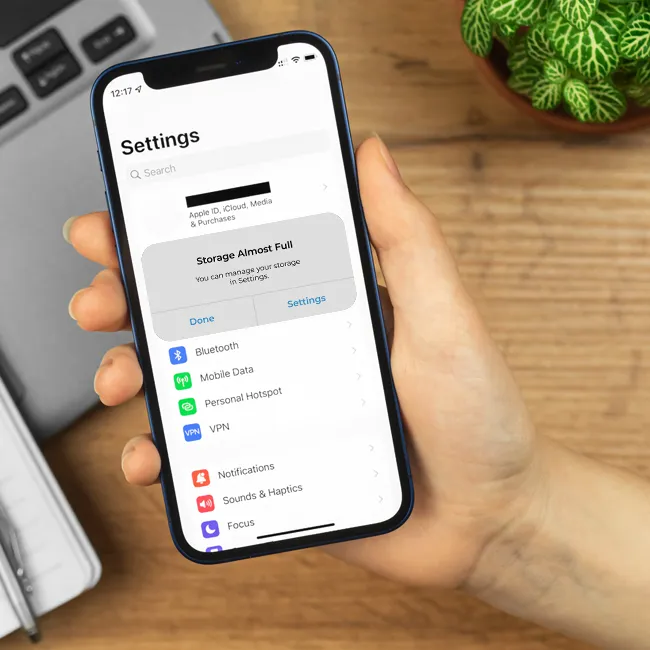
There are so many great things about having an iPhone, but one of the hardest parts is having to deal with full storage.
Most iPhone users have dealt with full storage notifications on their devices before, and there are a lot of people who have had to upgrade their iCloud plans to make more room and not have to delete some of their precious files or photos. However, there are ways to go about making some room on your phone without having to do anything too drastic or lose something important to you. Read more about what tech experts suggest below.

The Difference Between Dragging Through Your Day And Feeling Great On Your Feet? These Arch Support Insoles

1. Offload Unused Apps
This feature is one of those iPhone settings you should have on at all times if you're worried about your storage. Most iPhone users have been in a position where they have some apps on their device that they don't use as much, and those apps, if fully downloaded, can take up a lot of room. The Offload Unused Apps feature helps remove a lot of their excess data without fully deleting your progress or account on them to save some storage.
"Even if you're not using an app, it's storing large files, patches, and cached data, which is just growing and growing," explains tech pro Steven Athwal. "Offloading apps lets you remove the heavy data, but keep your settings. Essentially, cut the dead weight but keep all you need. It's perfect for people who keep apps 'just in case.'"

2. Delete Large Attachments
If you're someone who is active in their groupchats and likes to send a lot of pictures and videos back and forth with loved ones, that's great, but those actions can easily fill up your storage. Accessing the Delete Large Attachments feature in your iPhone storage settings can help you get rid of those excess files without actually deleting the important ones from your camera roll.
"Messages and email attachments build up, and you are not even aware," says tech expert Paul DeMott. "This built-in utility displays your biggest files to enable you to remove videos, PDF documents, and images that you no longer require, which can usually save you a number of gigabytes within a few minutes."

3. Empty Your 'Recently Deleted' Album
When you do feel the need to clear photos and videos to save room, like old screenshots you don't need anymore or unflattering pictures you don't want, it's good to delete them from your Camera Roll. However, there is also one more step you should take.
"Empty your 'recently deleted' photos and merge duplicates," adds Athwal. "Simply deleting photos doesn't remove them from your device; they actually stay for another 30 days so you can recover them. But this is taking up space and slowing down your phone. Empty the bin and free up real storage space. Also, merge duplicates to get rid of unnecessary copies."